

From Goal to Course: How the AI Mentor Works
August 18, 20264 min read
Tell the AI Mentor your goal and it builds a course of lessons from it, with lesson books, quizzes and flashcards. This guide follows the whole loop, from your library to daily reviews.
Skip to the guideReading to learn has one problem: you forget most of it.
You finish a book on Roman history, a grammar guide or a textbook chapter, and two months later you remember the general idea and a few facts.
pimReader closes that gap with a loop that takes something you read and carries it through to long-term memory. This guide walks through it once.
Step 1: Collect
Everything starts in your library: EPUB, PDF, MOBI, AZW3, FB2, TXT, HTML and Markdown; articles from RSS, Atom, OPDS catalogues, Telegram channels or X; web pages saved for offline reading without banners and pop-ups.
The point is that what you want to learn from lives in one searchable place, so the AI Mentor can work with it. A general chatbot knows the internet. It does not know your textbook, your notes, or which cards you got wrong last Tuesday.
Step 2: Ask the AI Mentor
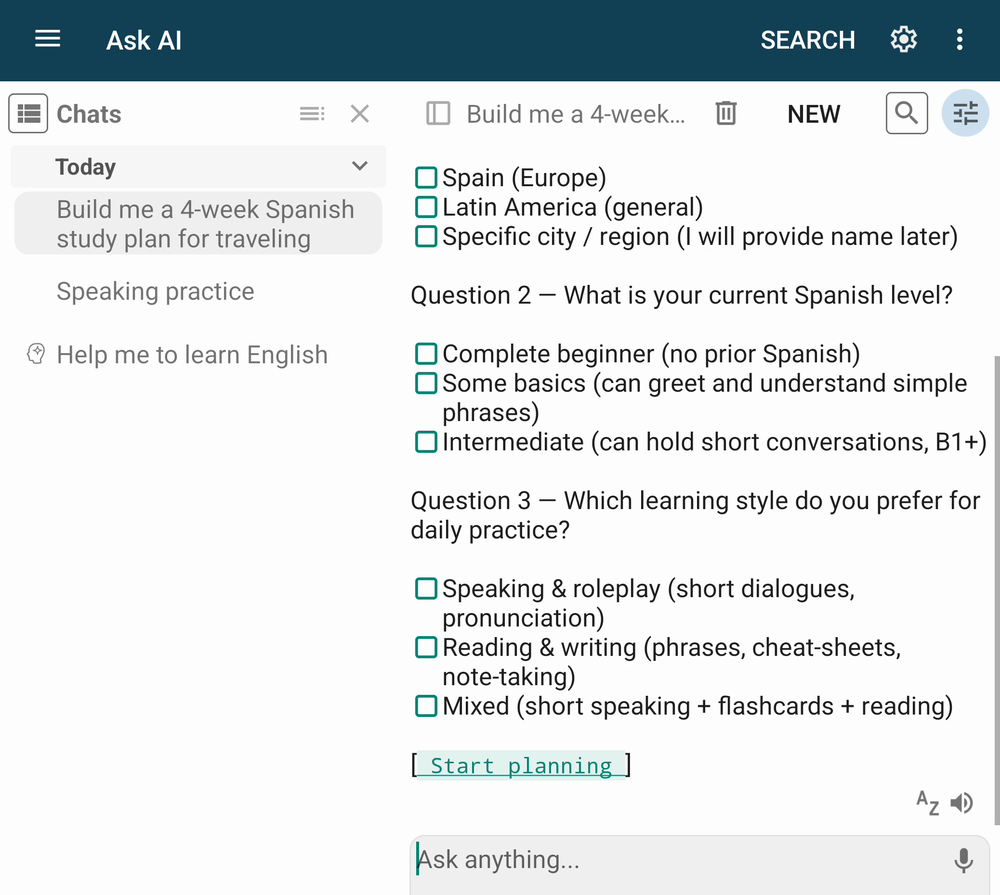
Open Ask AI on Home and describe what you are trying to do. Not "explain photosynthesis", but a goal:
"I want to get through this Spanish grammar book in eight weeks, about 30 minutes a day. I'm roughly A2."
The AI Mentor asks a few questions (your level, your deadline, how much time you have each day) and then proposes a course: a sequence of lessons sized to that goal. In the app it is called a study.
Nothing is created until you approve it, and you approve the plan once. The proposal opens in a panel for you to read first. If it is too ambitious or too shallow, say so:
"Too many lessons. Cut it to six and drop the subjunctive for now."
Adjust until it fits, then approve.
Step 3: The lessons become real material
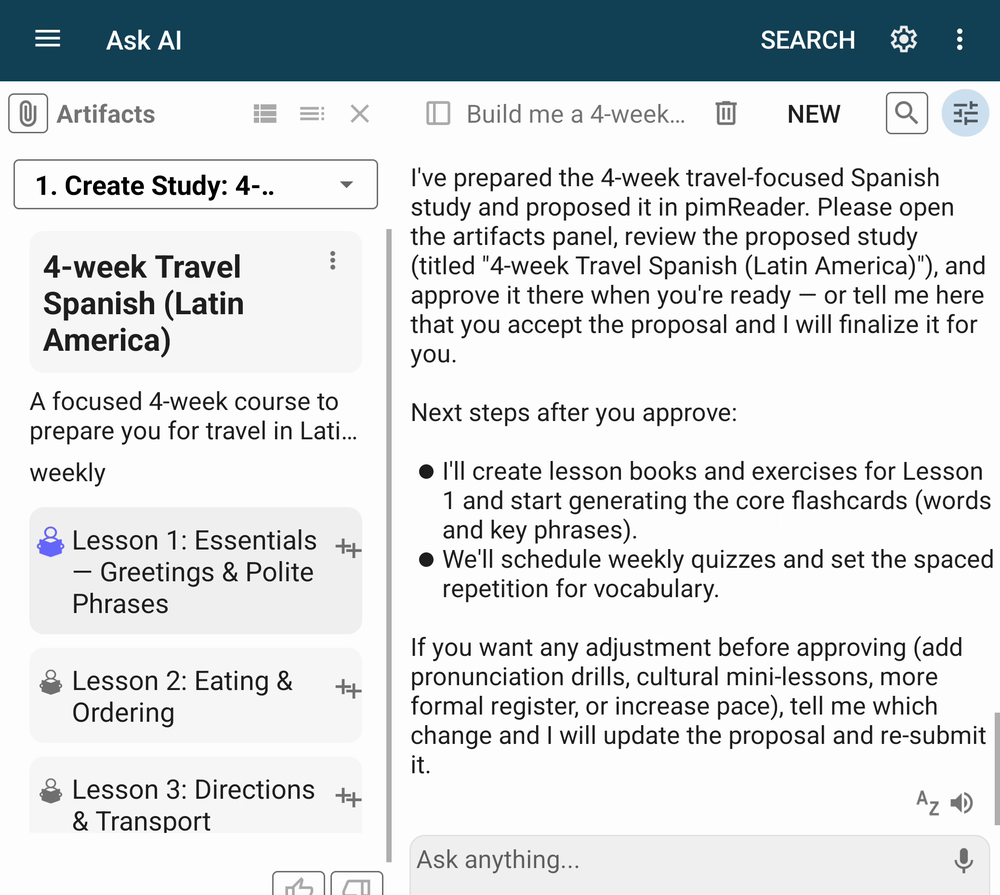
A lesson is not just a line in a list. The AI Mentor can write the actual content.
From the lesson menu you get:
- Create lesson book: a full book, saved in your library, that you read like any other book
- Create exercise book: a companion book of exercises
- Run quiz: an interactive quiz on the lesson
- Create Flashcard: vocabulary or facts from the lesson, ready for review (once they exist, the same item reads Open Flashcards)
- Vocabulary: the word list the lesson is built around
Because a lesson book is a book, everything else in pimReader works on it: the dictionary, text-to-speech, bookmarks, search.
If a lesson book is not quite right, ask for a patch: a targeted change you review and apply, instead of rewriting the whole book.
Step 4: Turn what you read into flashcards
While you read (a lesson book, a novel, a news article) you will find things worth keeping: a word, a date, a definition.
Select it and ask for a flashcard. You get a question and an answer, filed in a folder.
You can also give the AI Mentor a passage and ask it to propose a set of flashcards, then keep the good ones from a preview. Tables become flashcards. Vocabulary lists become word cards with the right language attached.
Speed matters here. If a flashcard takes ninety seconds to make, you won't make it. If it takes two taps, you will.
Step 5: Daily reviews
Now the schedule takes over. pimReader uses spaced repetition, which brings each card back when you're likely to start forgetting it. Due cards wait in your daily reviews (the Exercise card on Home).
Rate each card Again, Hard, Good or Easy. Each button shows the interval it will set, such as 10 Min or 1 D, before you press it. Rate honestly: cards you know move out to months, cards you don't come back tomorrow.
Step 6: Practise, don't just review
Recognising something is not the same as knowing it, so the same material can be practised in several ways:
- Memorize Words: short sentences that help vocabulary stick
- Exercise (build sentences): write your own sentences with the words you are learning. This is not the Exercise card on Home, which starts your reviews
- Develop Fluency: understanding and composing longer sentences
- Practice Dialogs: a conversation, line by line
- Practice with AI Assistant: a live chat that uses your own vocabulary
- Speaking practice: a fully spoken, hands-free session
Practice sessions don't change your review dates. A spoken review session does: words you get wrong come back sooner.
Step 7: See where you are
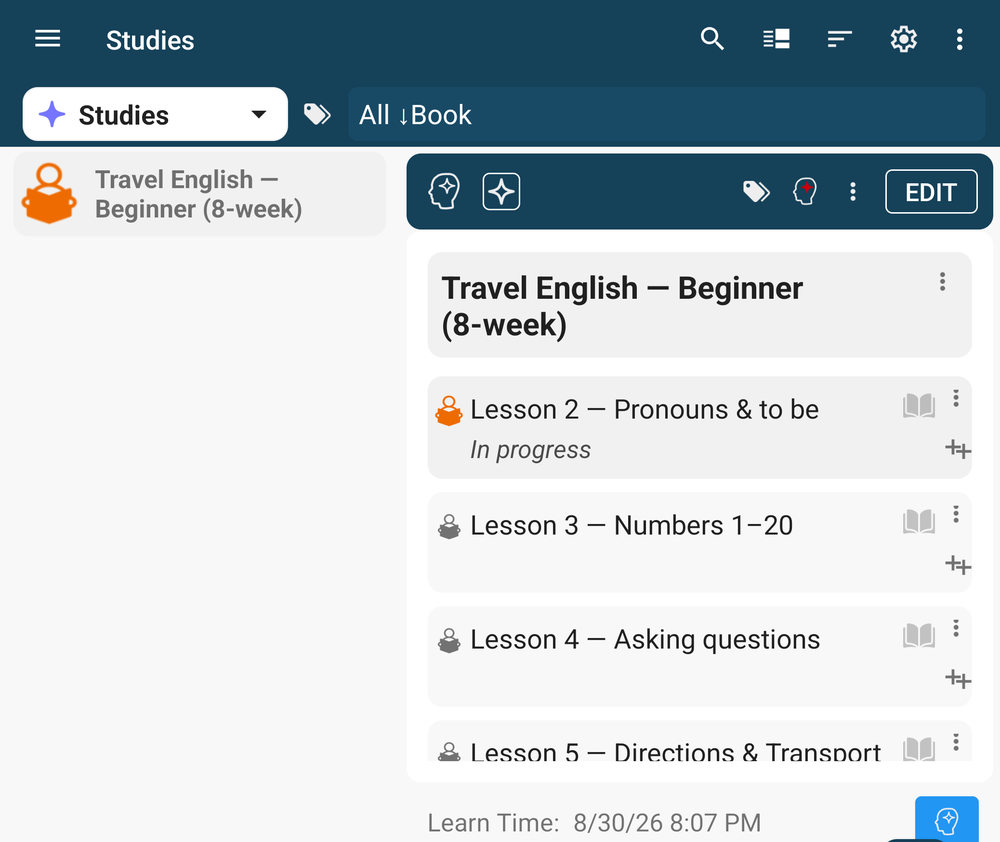
The Studies screen shows where you are: which lesson is In progress, which are Not started and which are Completed. There is no streak counter, just the state of the work.
With sync on, your library and progress move between your Android devices through your own Google Drive. Start a lesson on a tablet and do your reviews on the phone.
The loop, in one line
collect → plan → generate → capture → review → practise → track
The book you read on Tuesday gives you the flashcards you review on Friday and the conversation you practise next month.
None of this is specific to languages. Swap "vocabulary" for "case law", "drug interactions" or "Kubernetes concepts" and the loop is the same.
To start, open Ask AI on Home and describe one thing you are already reading and want to remember.
The AI Mentor, lesson books, quizzes, AI flashcards and Practice use AI, part of pimReader Plus; your library, flashcards you write yourself, daily reviews and sync are free. When you open an AI feature, pimReader offers Try free for a month: no card, no account, nothing renews. Tap Not now to carry on without AI.